
Firmware Update
Firmware updates are maintenance operations. When the devices are working normally, there is no need to update repeatedly just to chase version numbers.
Before You Update
- Confirm the firmware is explicitly for your tracker or receiver model.
- Confirm the tracker and receiver firmware versions are compatible with each other.
- Ensure the computer and devices have a stable power supply.
- Close software that may occupy the device port.
- Only use firmware and tools confirmed by Neko Nya.
Do not interrupt the update
Do not unplug the device, close the tool, or let the computer sleep during the firmware write. Using the wrong firmware may make the device fail to start or fail to pair.
How to Check the Version
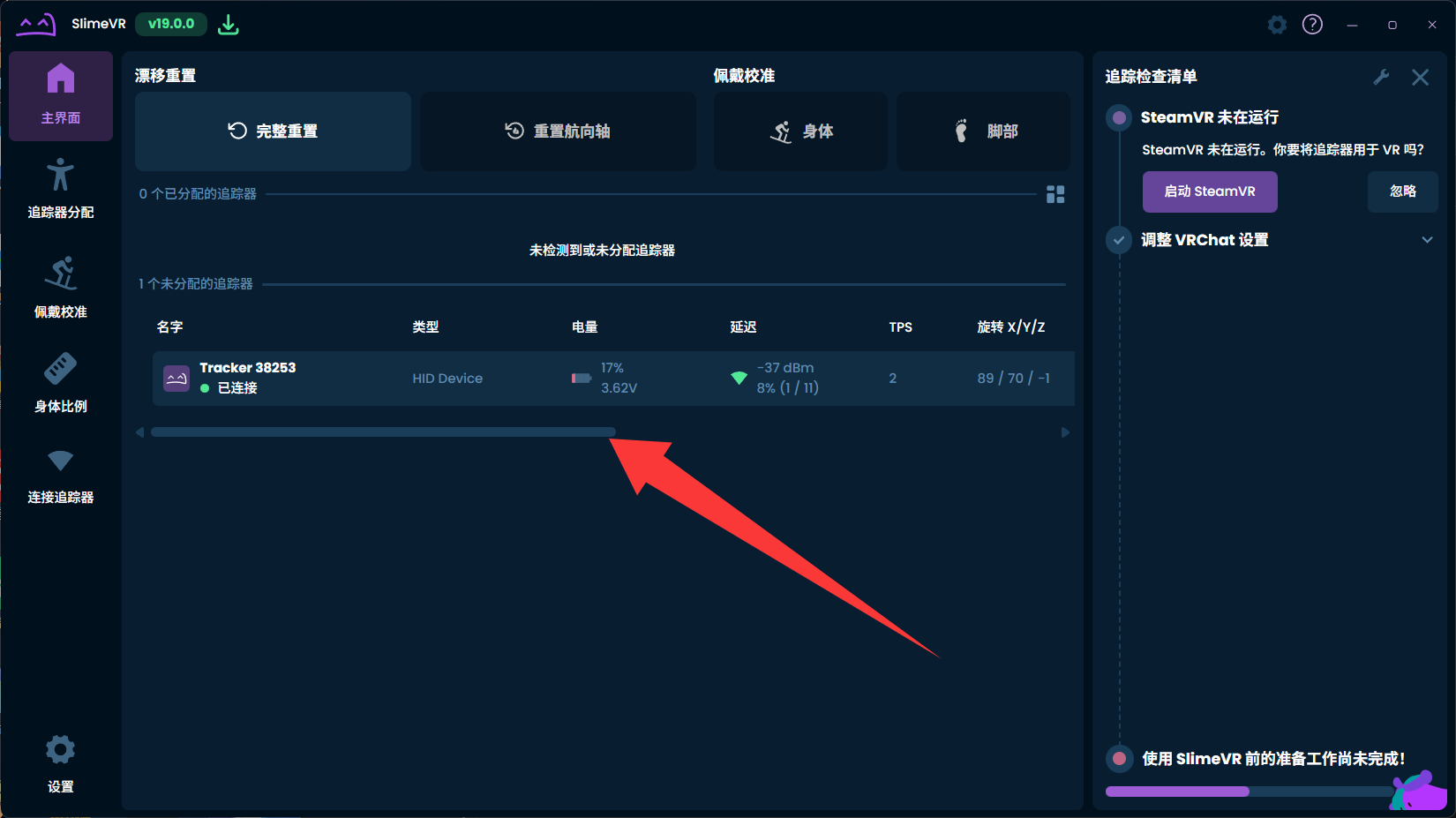
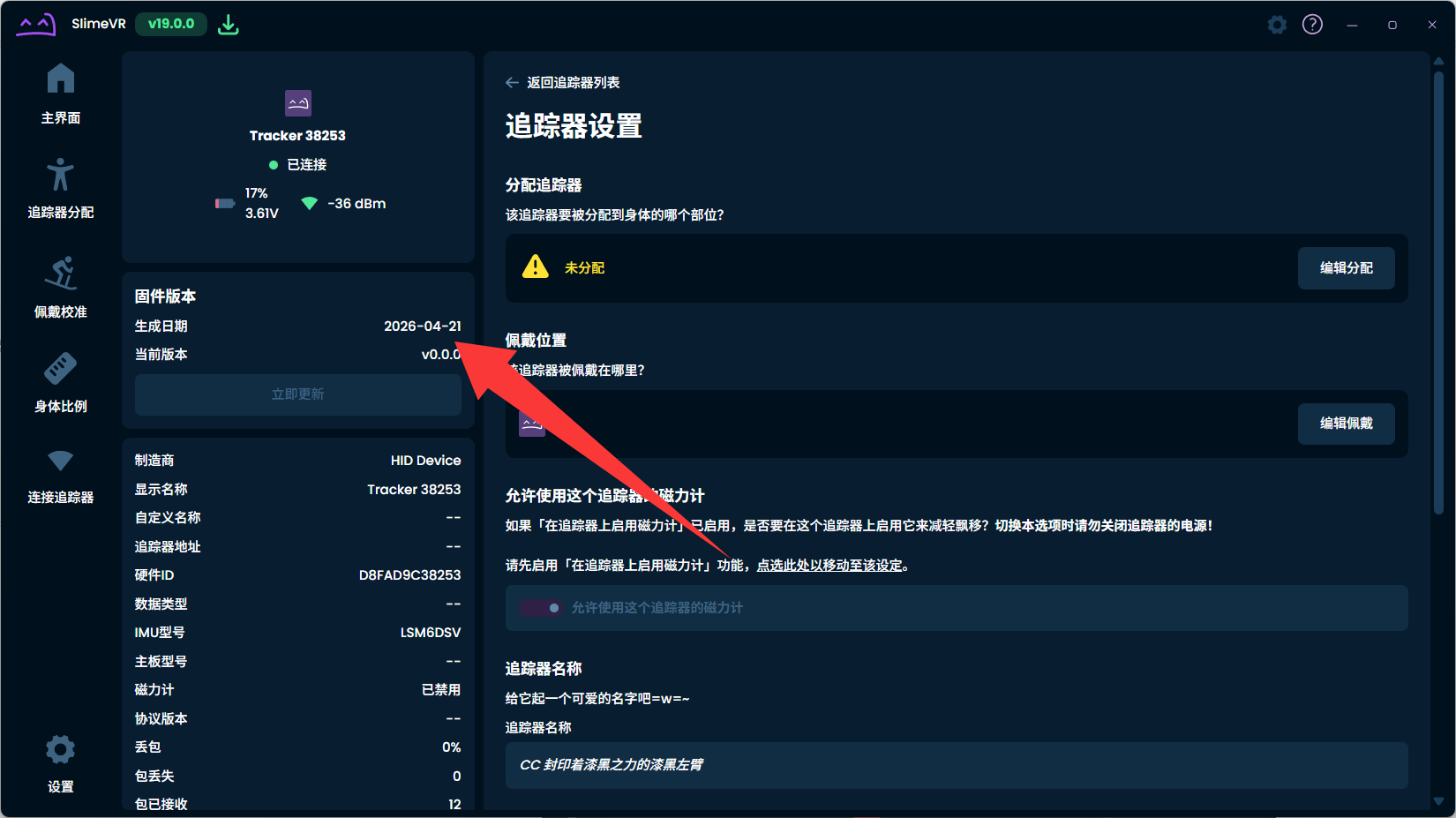
In the SlimeVR main window, click the tracker you want to check. The device info panel shows the current firmware version.
Updating Tracker Firmware from a Computer
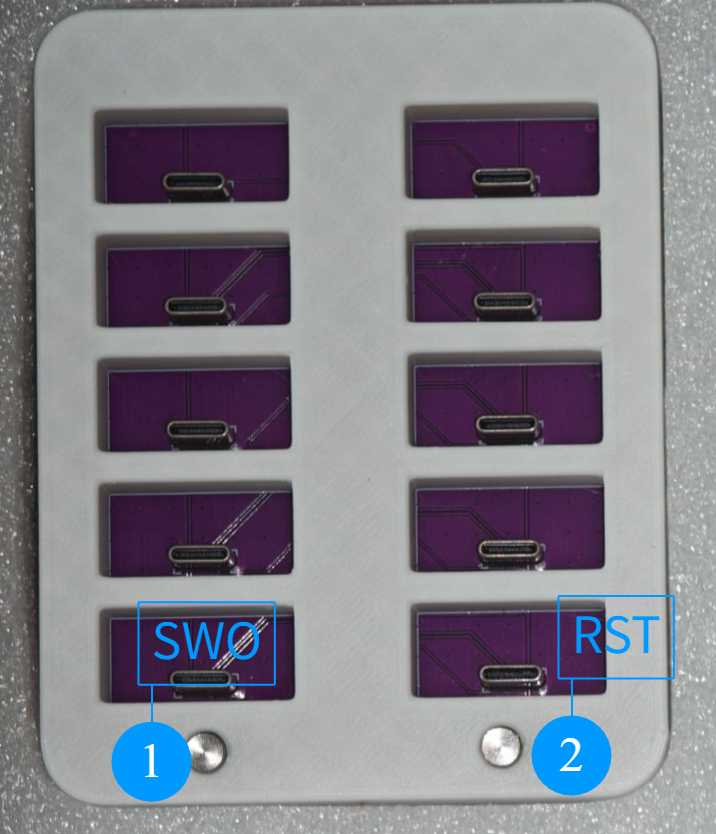
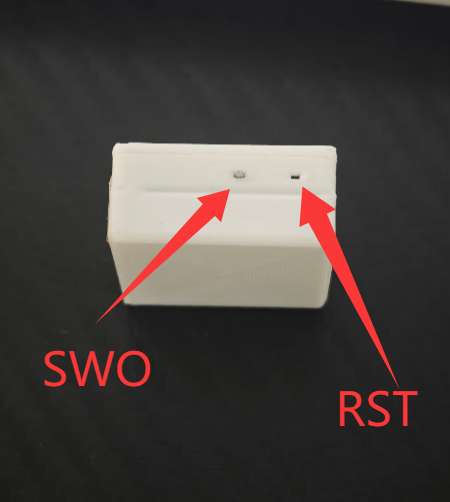
Press the
RSTfunction button three times (you can use the button on the charging dock or on the tracker; when operating a tracker directly, gently press the reset hole with a toothpick).Connection slots
Only the four dock slots near the buttons support connecting to a computer.
After pressing
RSTthree times, the tracker enters DFU mode and its red light blinks. Connect it to the computer; a removable disk namedtk_bootappears. Drag the latest firmware matching the device from an official source onto it.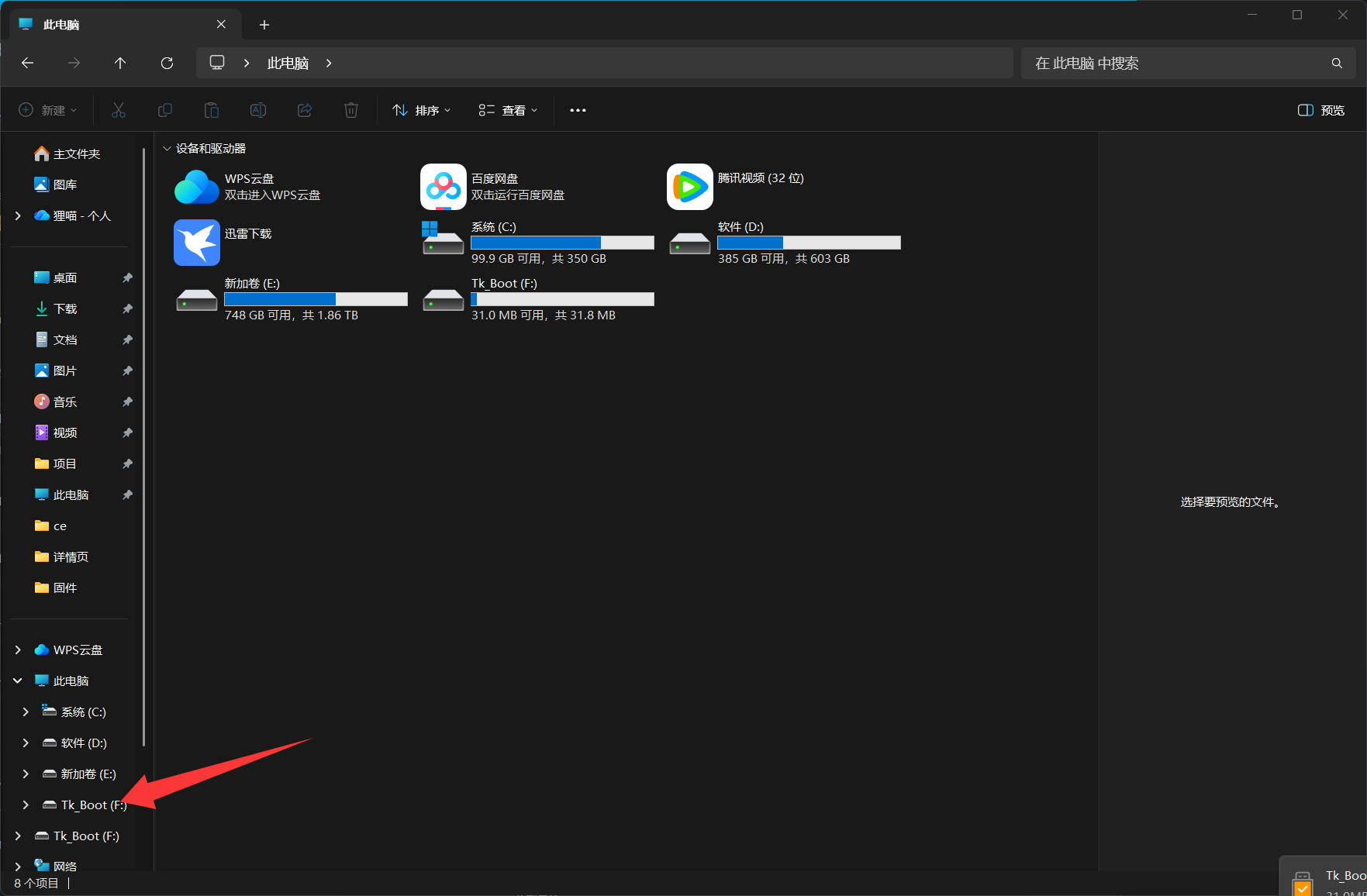
Example of the `tk_boot` disk in DFU mode.
Recovery After a Failed Update
If the device cannot be recognized, started or paired after an update, stop flashing repeatedly. Note down the device model, the firmware file used, tool messages and indicator-light state, then contact support.
Version History
| Version | Supported device | Release date | Main changes |
|---|---|---|---|
| TBD | TBD | TBD | To be migrated from the existing firmware materials |