
Continuous Calibration
Requirements
Wear the VR headset and enter VRChat before following these steps.
Open Settings, select Continuous Calibration, and click Configure Continuous Calibration.
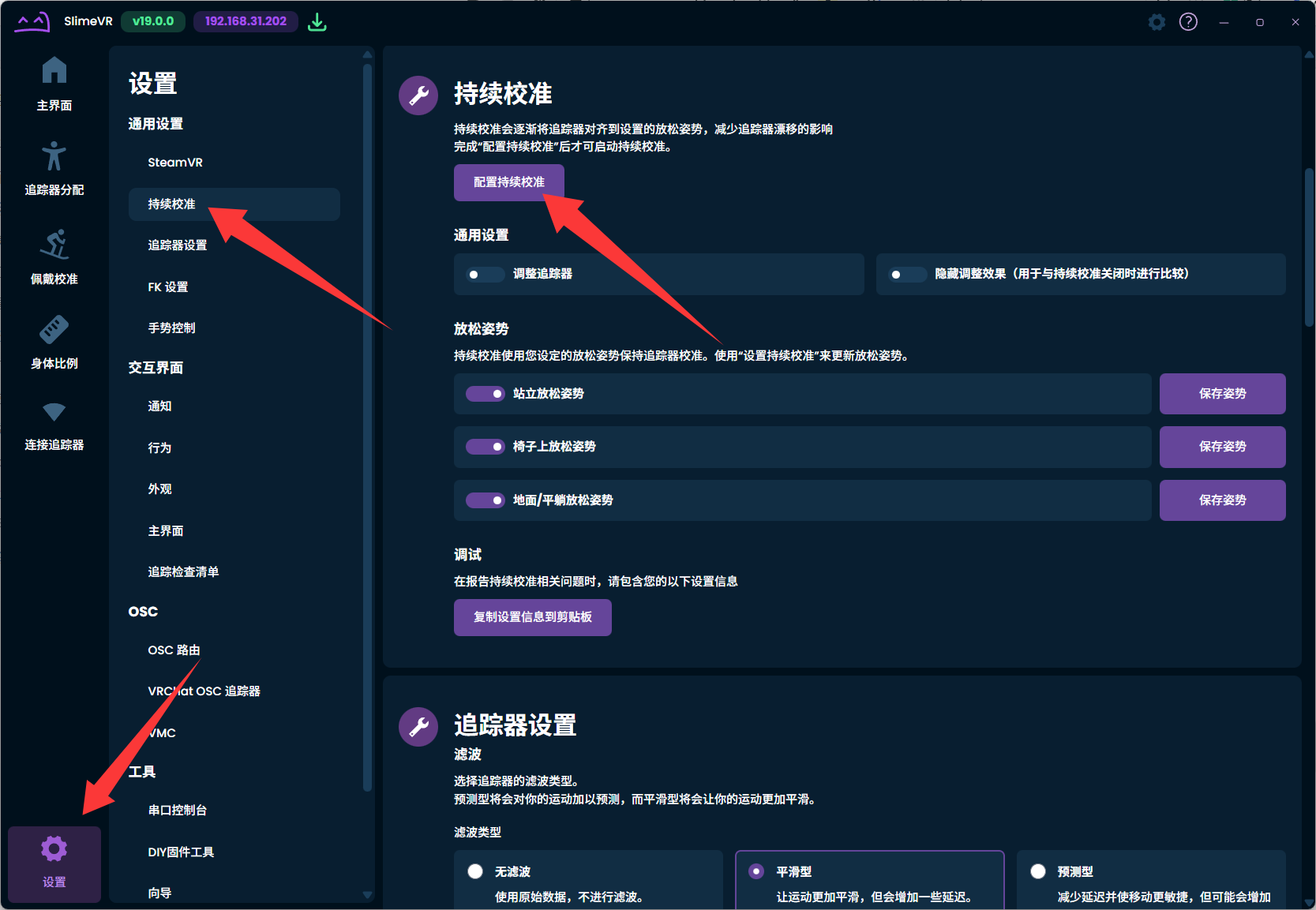
Open Settings and configure continuous calibration. Click the “Trackers are already on” button.
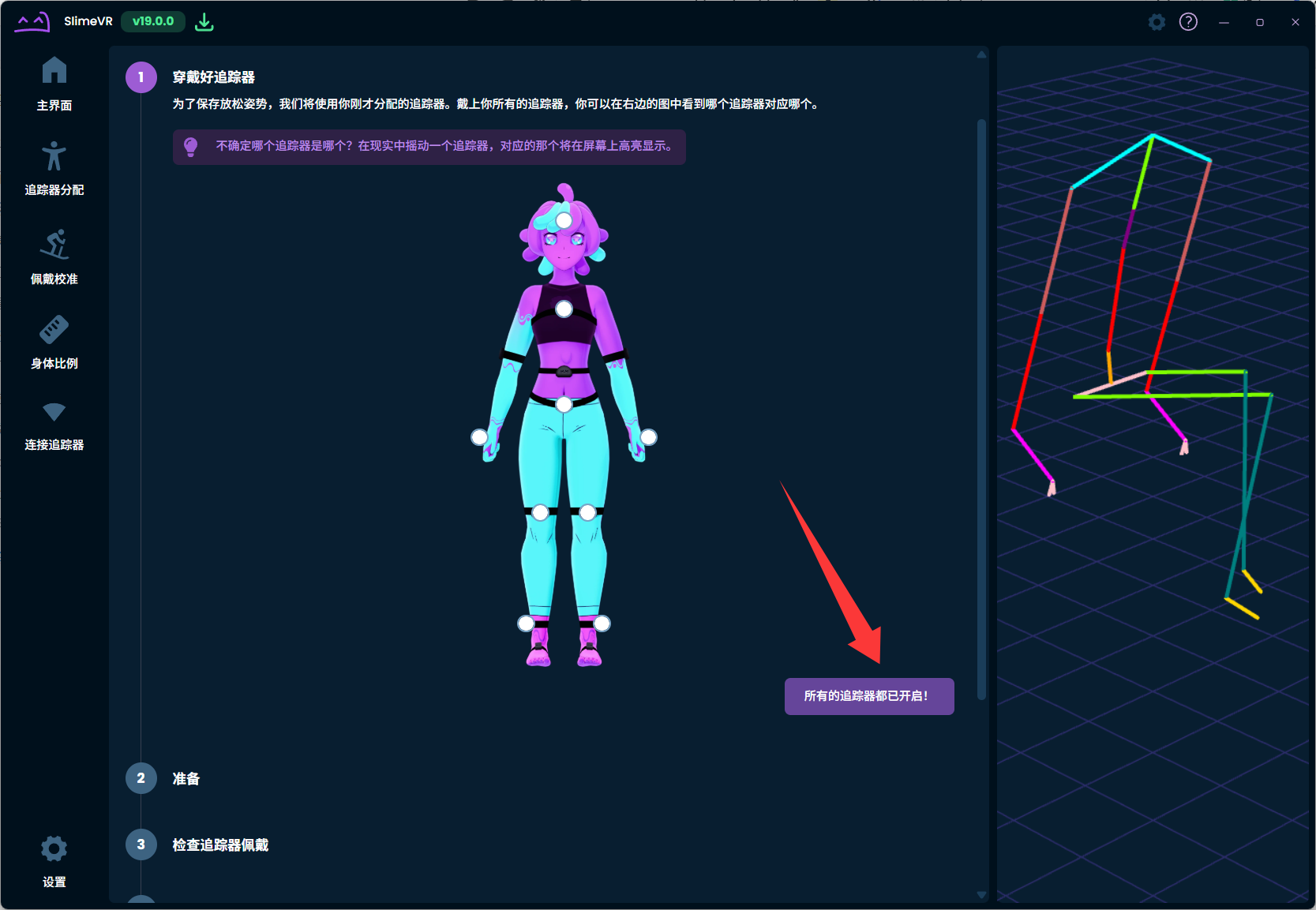
Confirm that the trackers are on. Stand straight as shown, then click “Full Reset”.
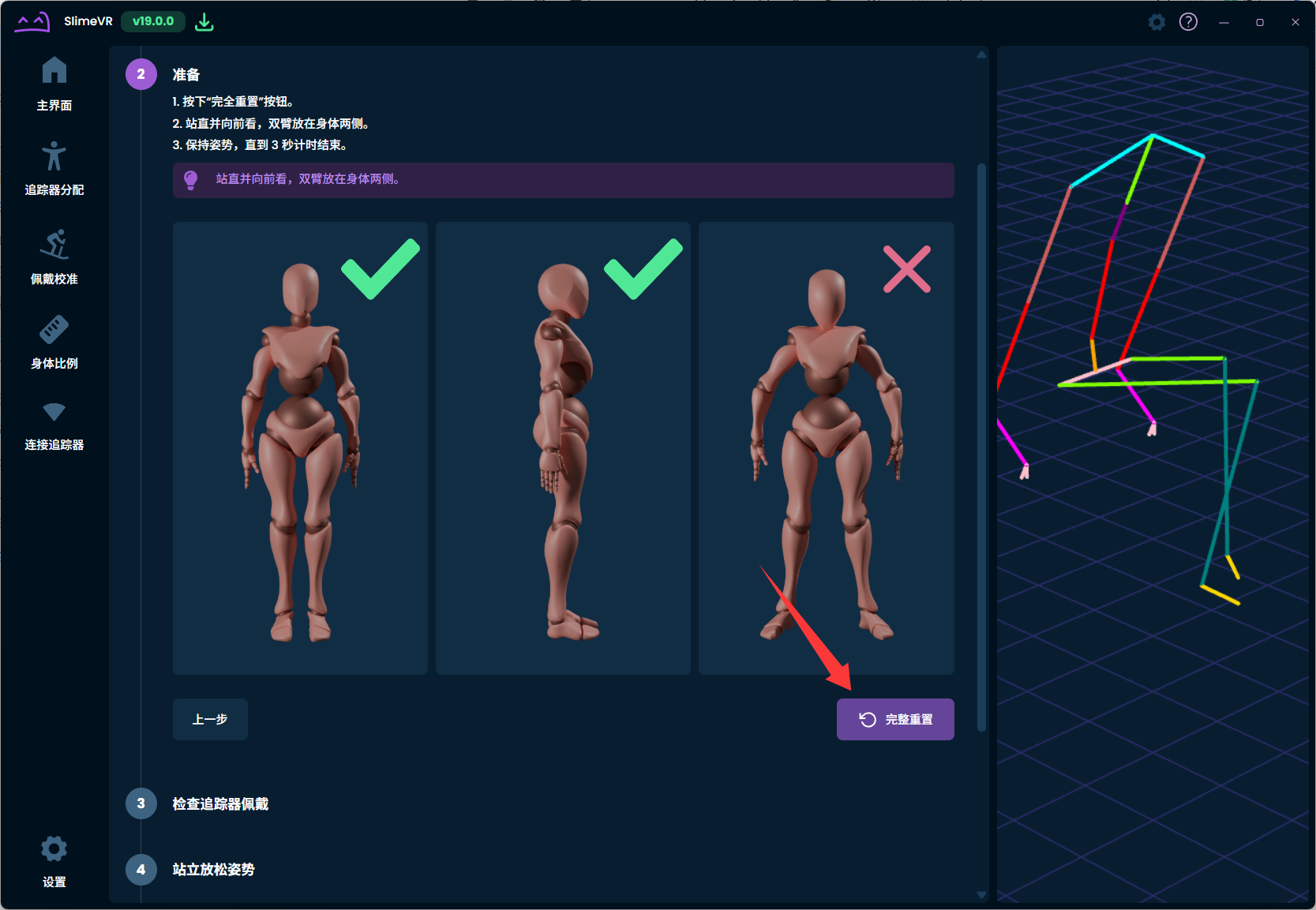
Stand straight and complete the full reset. Make the skiing pose, then click “Reset Wearing”.
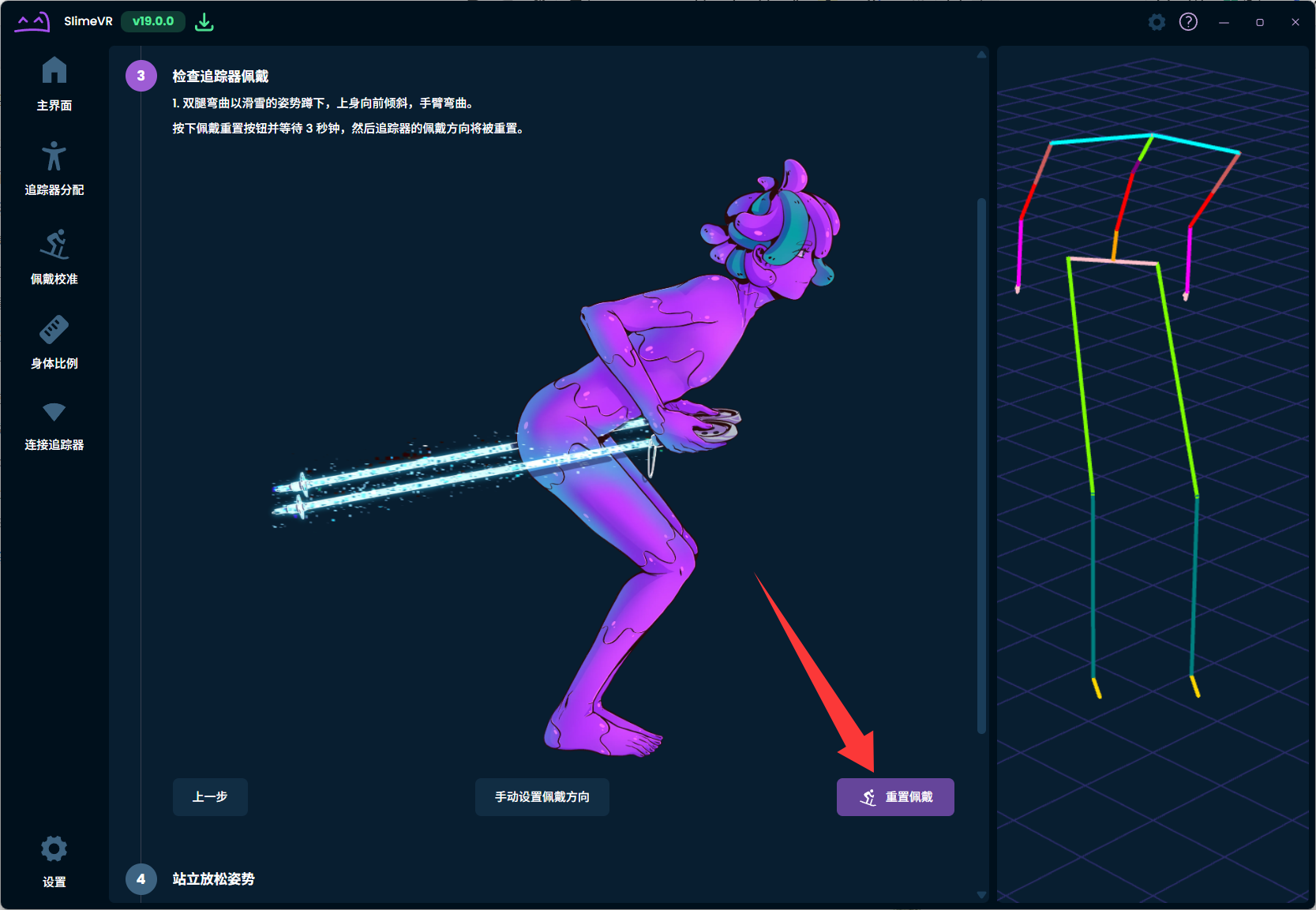
Make the skiing pose, then reset wearing. Relax while standing and use the controller to click “Save Pose” (you do not need to hold both hands against your chest).
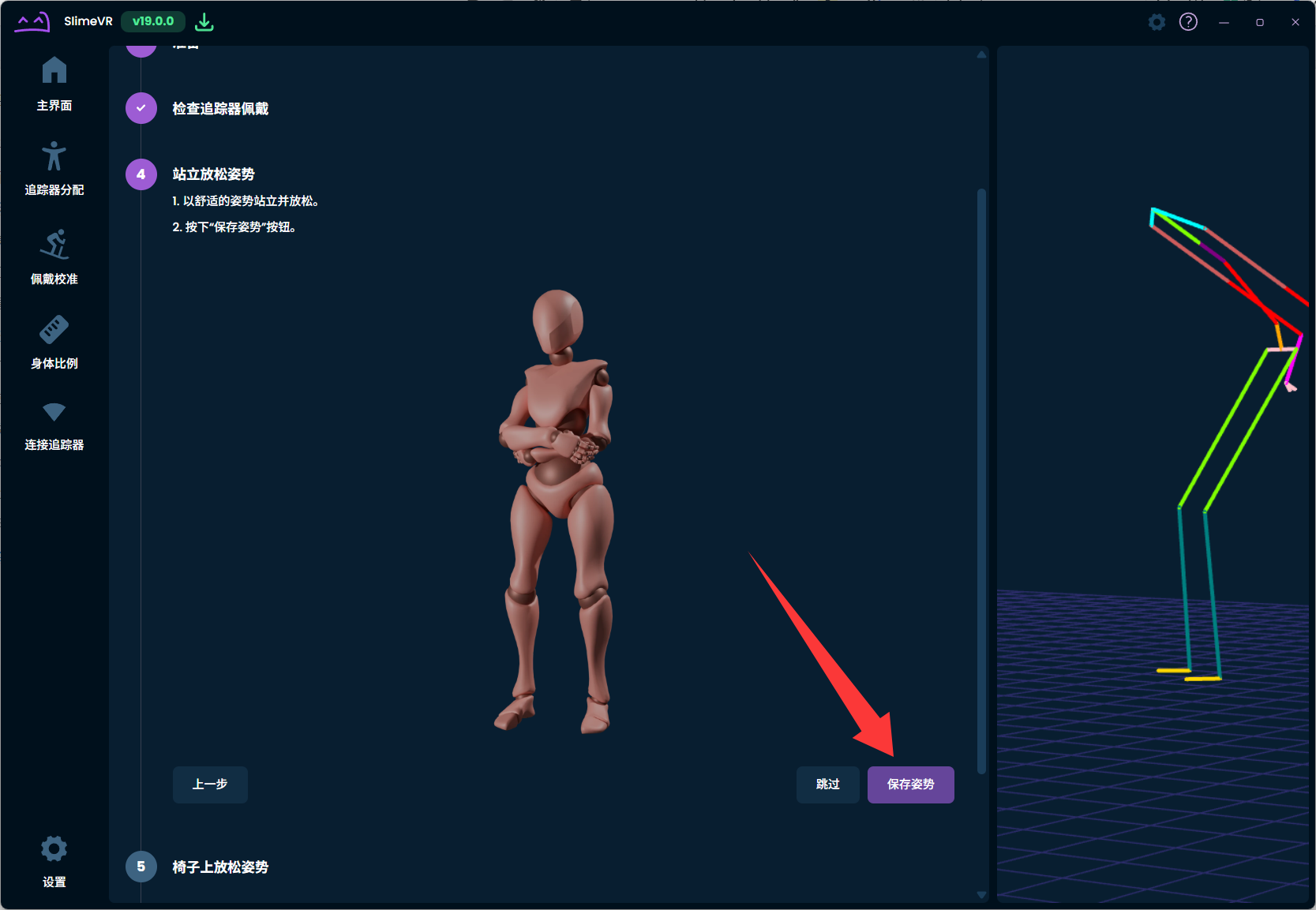
Stand relaxed and save the pose. Sit in a chair and click “Save Pose”; if that is inconvenient, squat against a wall to imitate sitting.
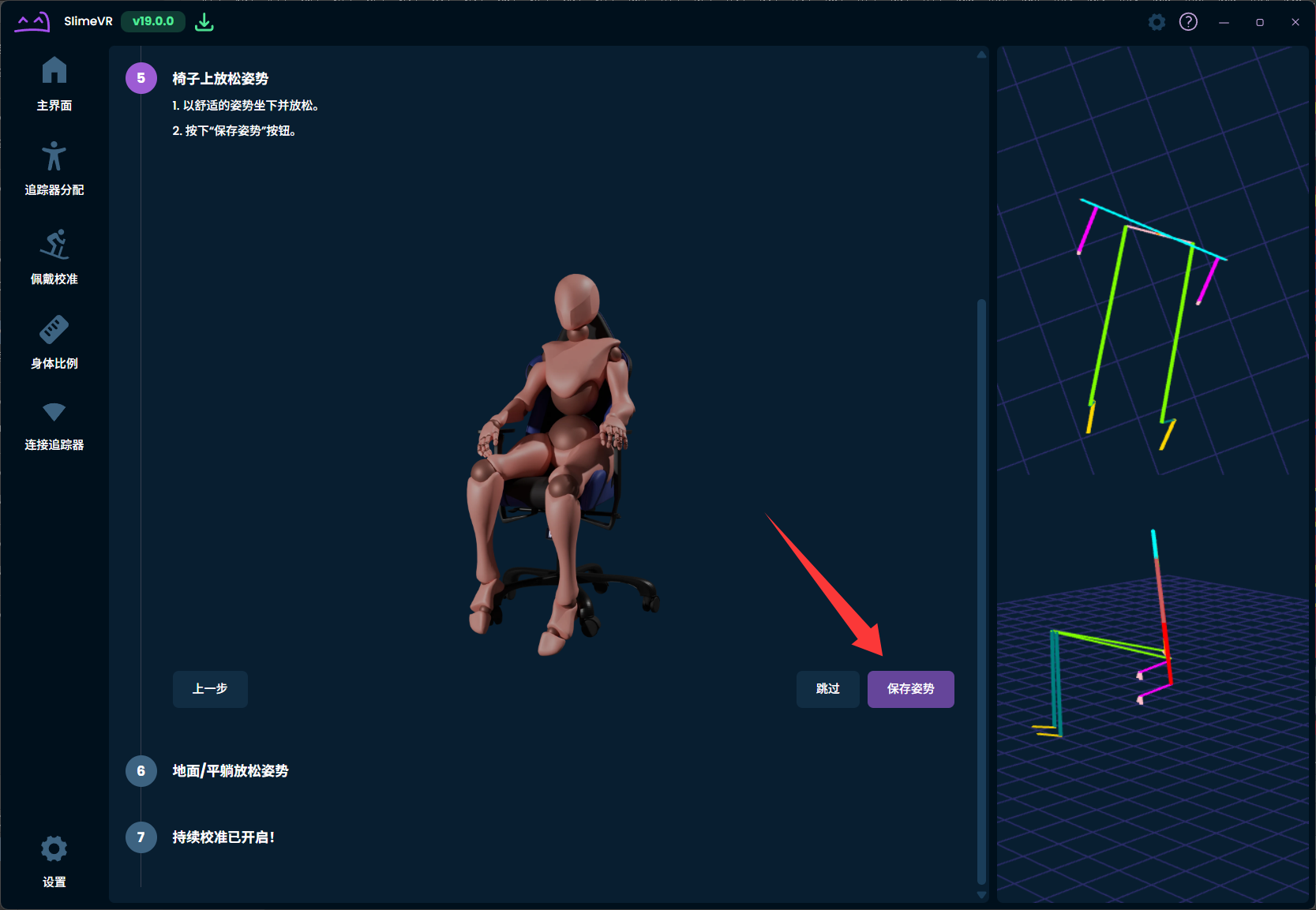
Sit or squat against a wall and save the pose. Finally lie down, or sit/recline on a bed, and click “Save Pose”.
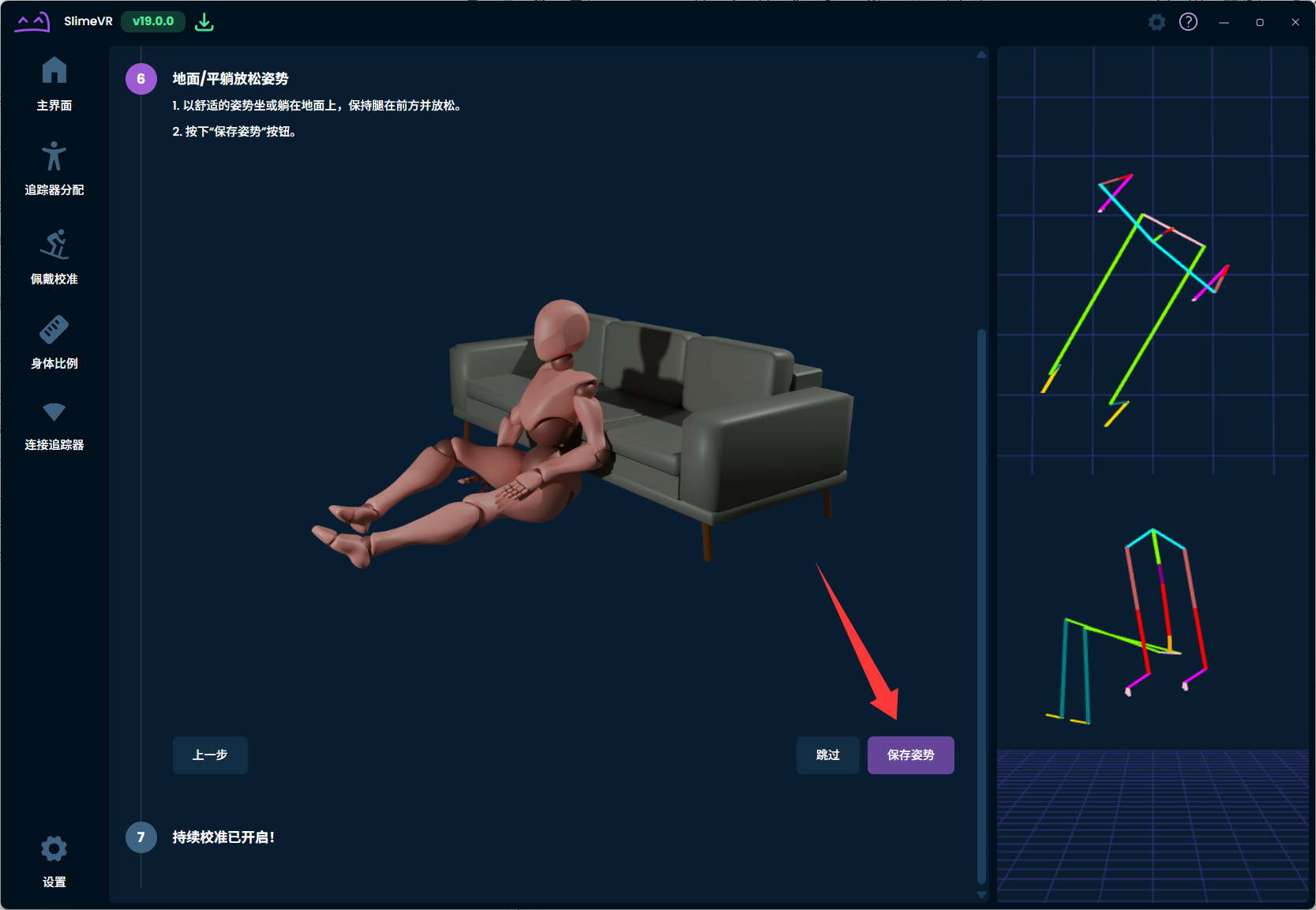
Lie down or recline and save the pose. When setup is complete, click “Finish”.
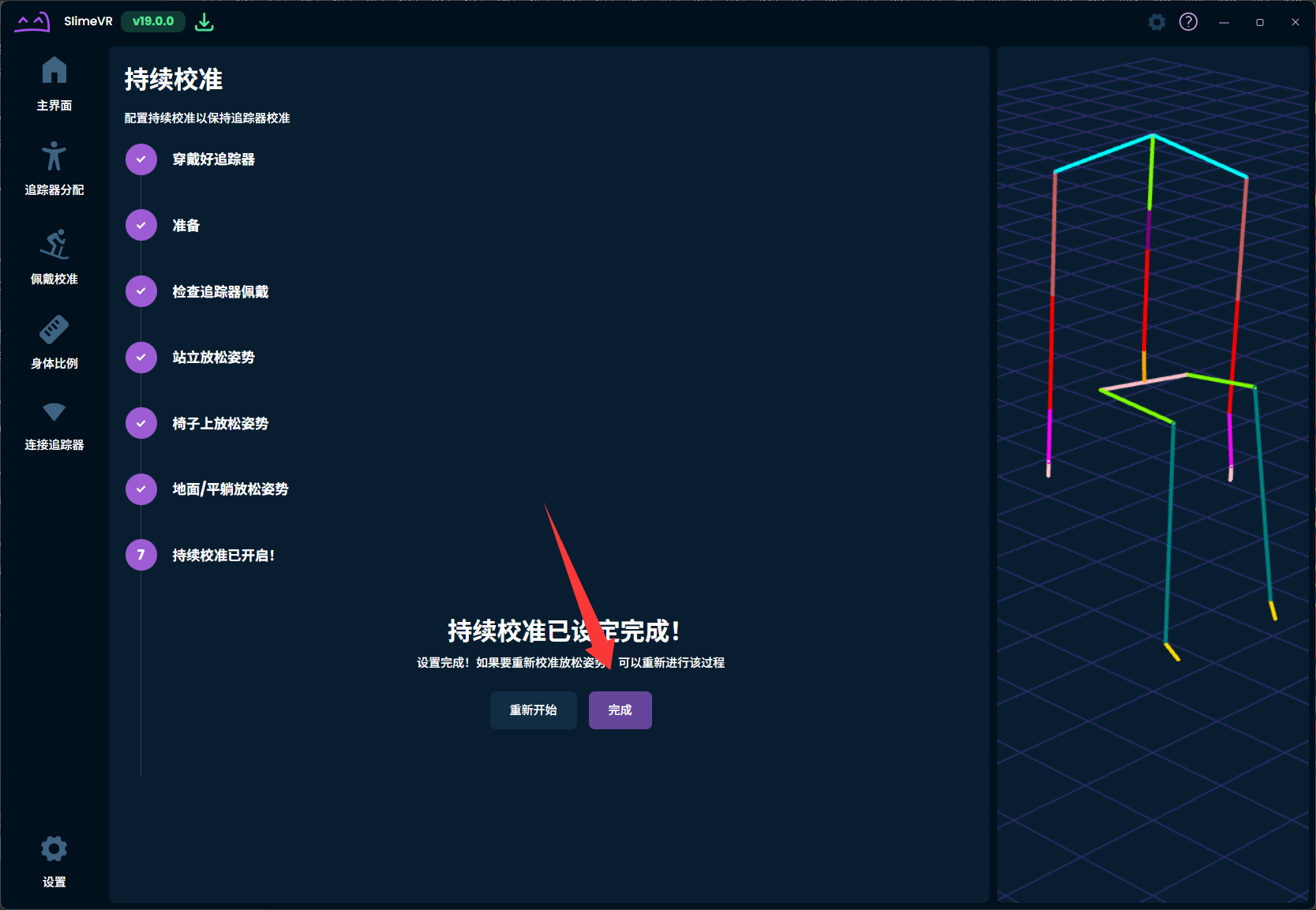
Click Finish after all poses are saved.
Function Guide
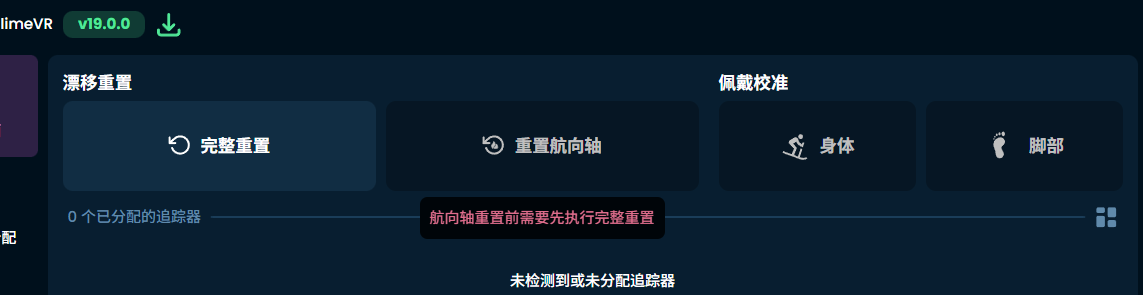
When to Use a Reset
- After re-wearing the trackers or headset, or restarting the app, run Drift Reset - Full Reset and Wearing Calibration - Body (Reset Wearing) before starting to use the trackers.
- When the trackers develop natural drift after a long session, choose Drift Reset - Full Reset or Drift Reset - Reset Yaw depending on the situation.
- If a tracker shifts while being worn and the movement direction is still wrong after a full drift reset, repeat Drift Reset - Full Reset and Wearing Calibration - Body (Reset Wearing).
- If you use 8 or more trackers and have foot trackers assigned, run Wearing Calibration - Feet (Reset Feet Wearing) after each body wearing calibration to correct the foot direction.
Drift Reset - Full Reset
What it does: Full Reset restores the trackers to their original position and orientation. It corrects wearing-position offsets and can fix tracking drift that develops during long use.
How to use it: Click the function button, then hold an upright standing pose for about 3 seconds.
Drift Reset - Reset Yaw
What it does: This function resets only the tracker yaw axis while keeping roll and pitch unchanged. It can correct natural drift while sitting or when you cannot stand upright. If the result is not satisfactory, use Full Reset. This function only applies to the torso.
How to use it: Look straight ahead, extend your limbs as much as possible, and click the corresponding button; standing upright is not required.