
VRChat Setup
This page applies when playing VRChat through SteamVR direct connection or streaming. First complete device detection and tracker assignment in SlimeVR Software.
Before Entering VRChat for the First Time
This chapter
This chapter guides you through setting up the Slime trackers in VRChat for the first time.
Start SlimeVR and confirm all trackers are connected and assigned correctly.
Put on the headset and trackers, start SteamVR, then enter VRChat.
In SlimeVR, open the "Settings - VRChat settings warning" page.
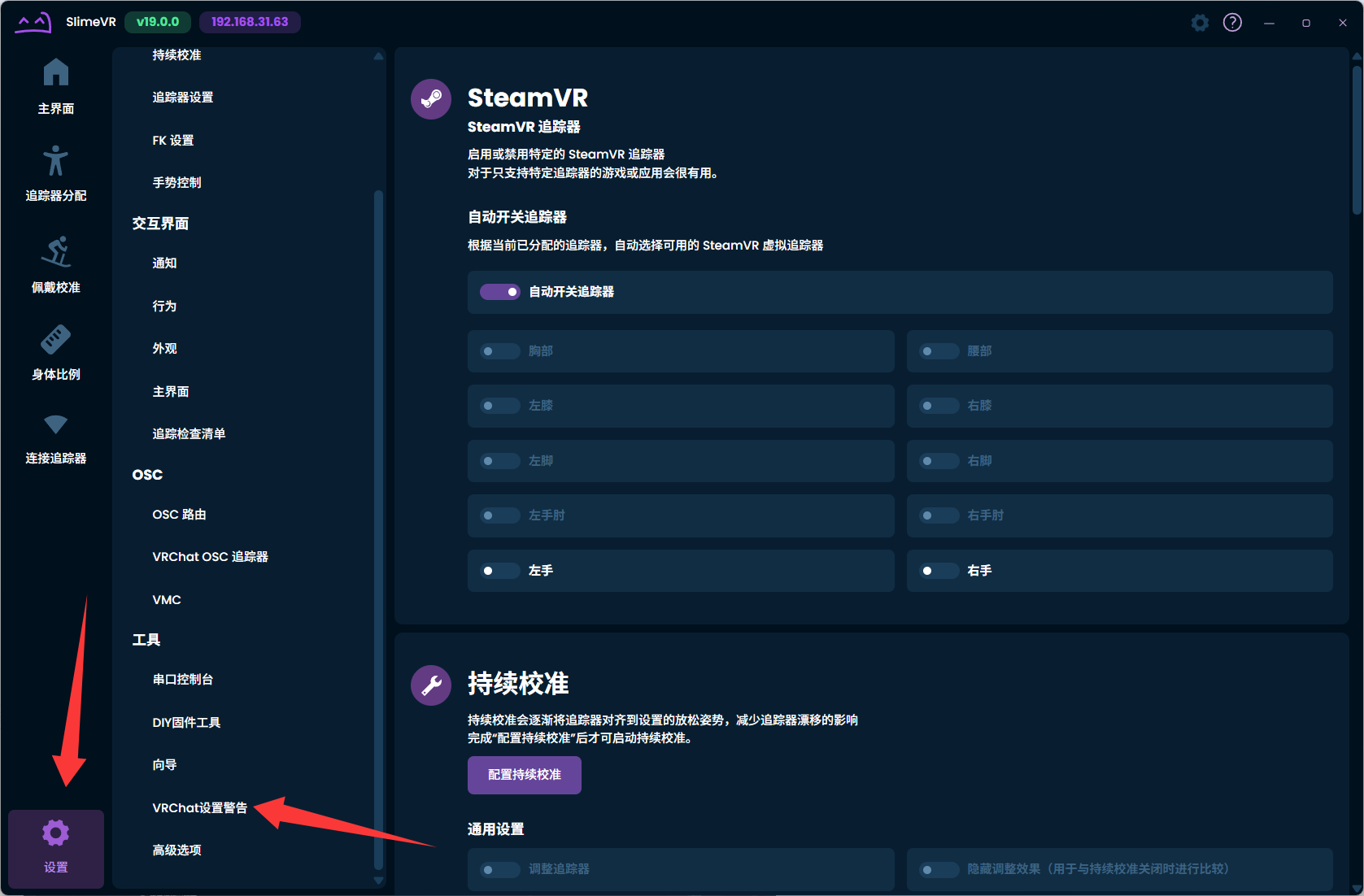
Open the VRChat settings warning page. Note the items marked with yellow exclamation points and adjust the corresponding VRChat settings (use the current software version as the reference).
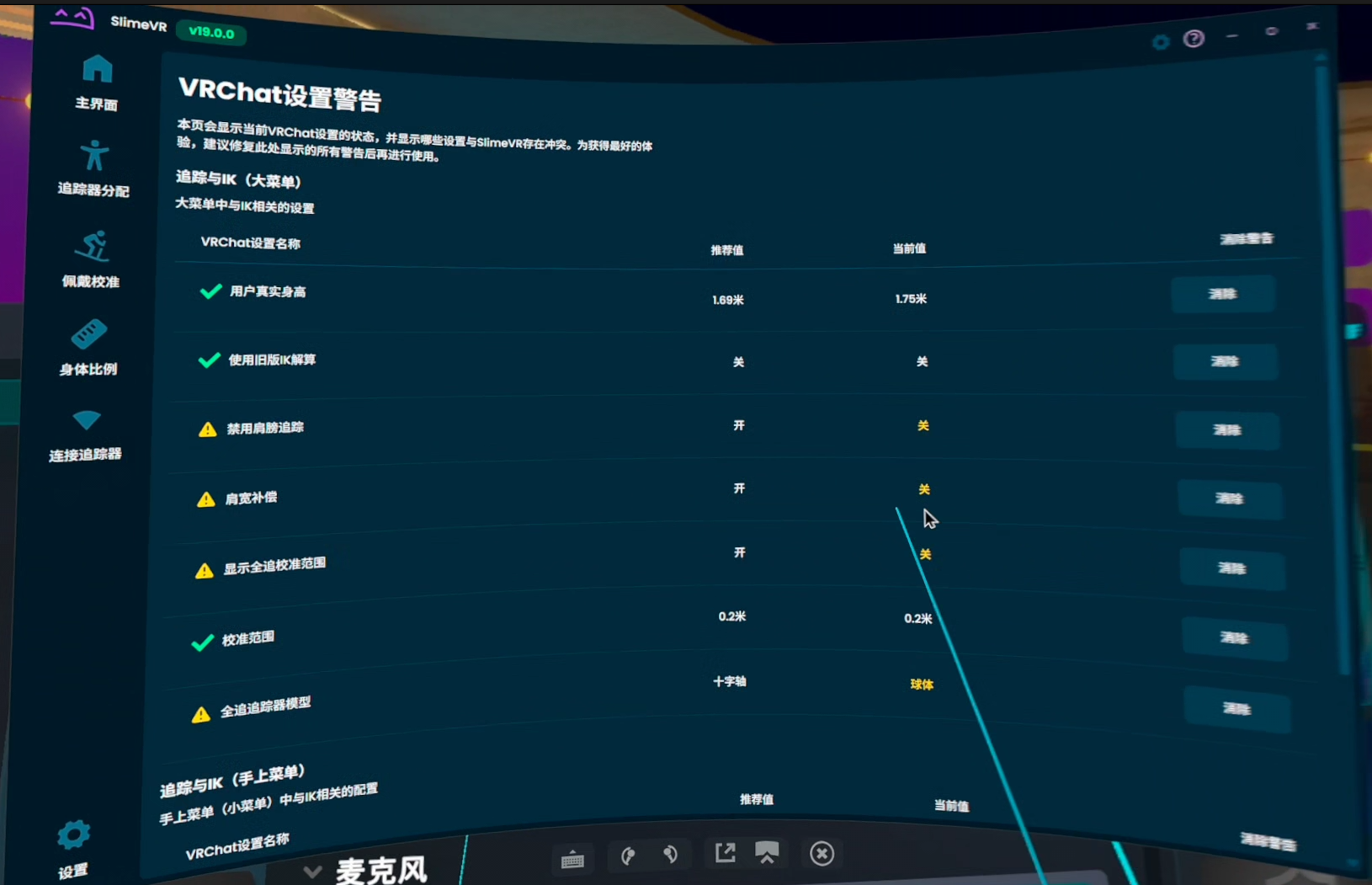
Check the items indicated by the yellow prompts. 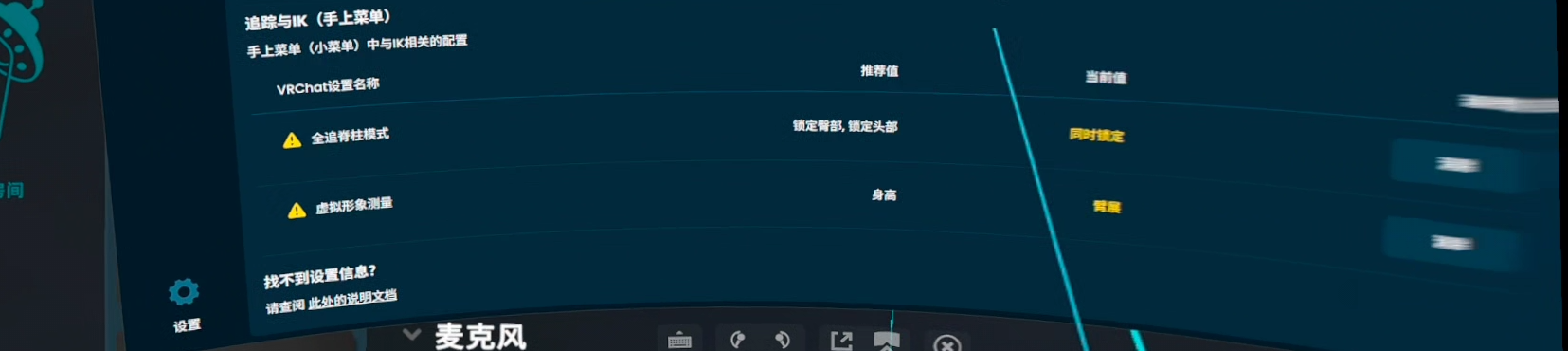
Follow the prompts of the current version.
VRChat Tracking Settings
Open the VRChat panel and click Settings to enter the large menu.
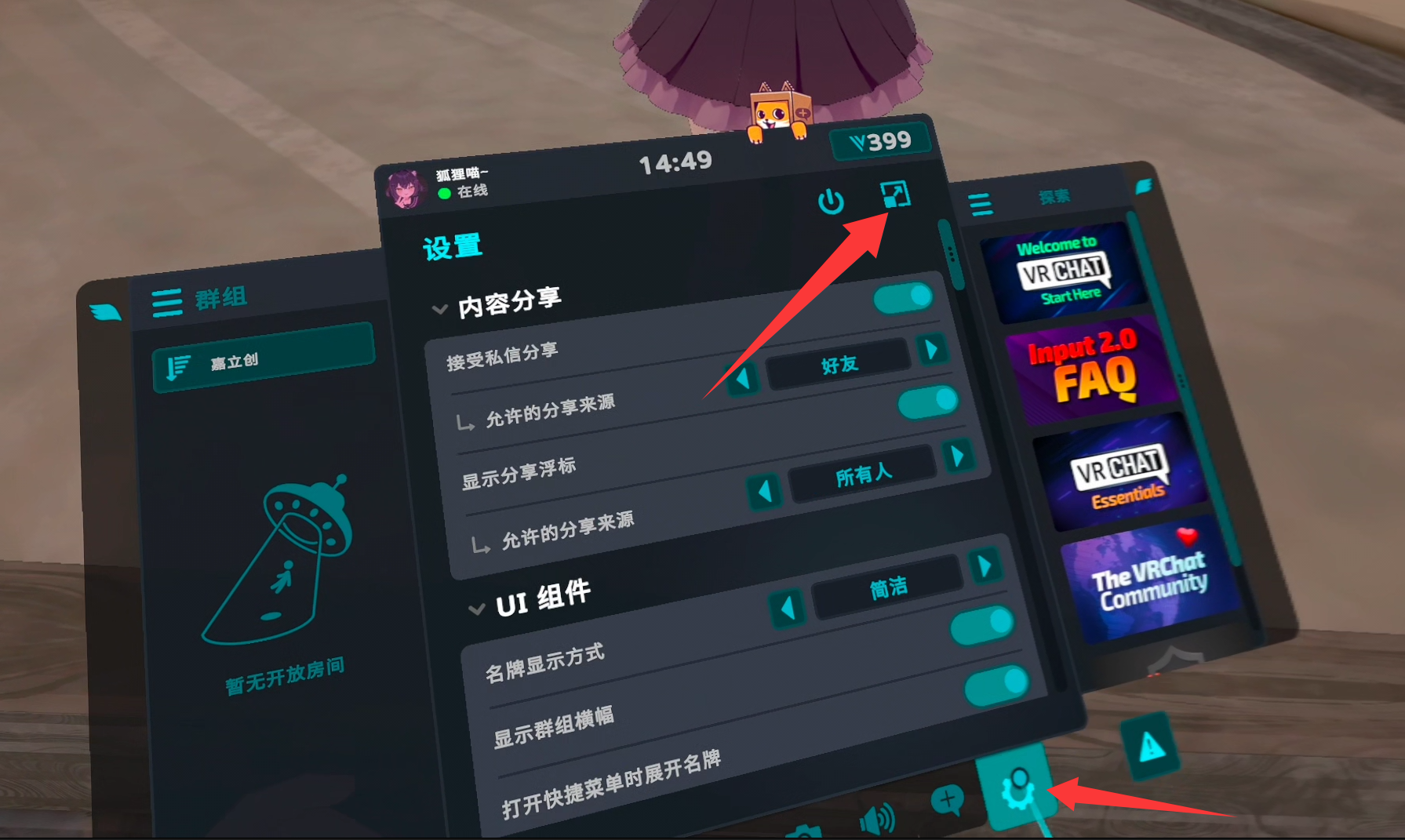
Enter the settings large menu from the panel. Go to "Settings - Large menu - Mirror" and enable the personal mirror during full-body calibration.
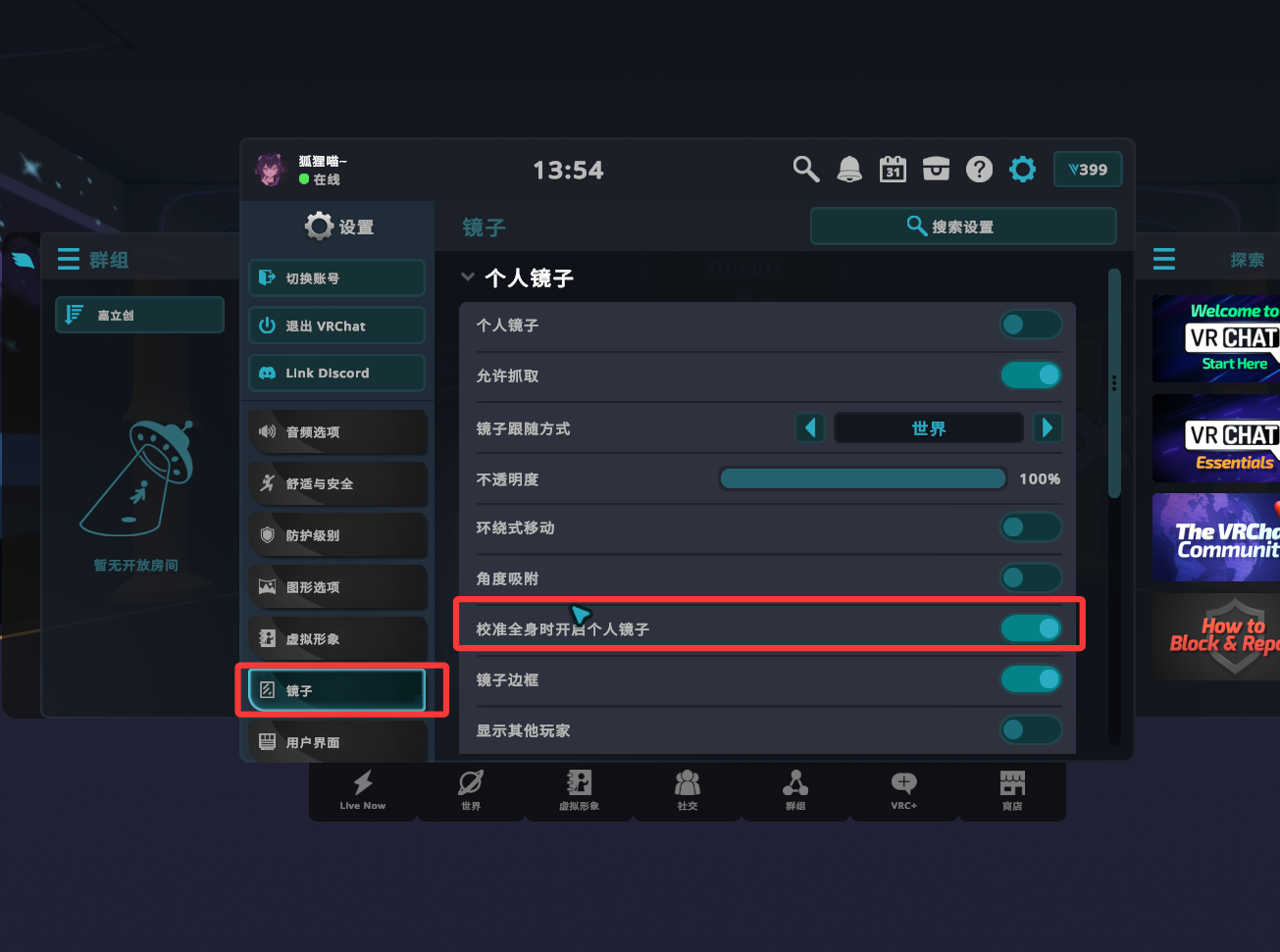
Enable the personal mirror during full-body calibration. Real height
Fill in your real height for the VRChat avatar! The height inside SlimeVR does not need to match VRChat.
Switching avatars
When switching to a different avatar, check whether the tracker nodes align with the model; if not, fine-tune the skeleton.
Enable "disable shoulder tracking and shoulder width compensation".
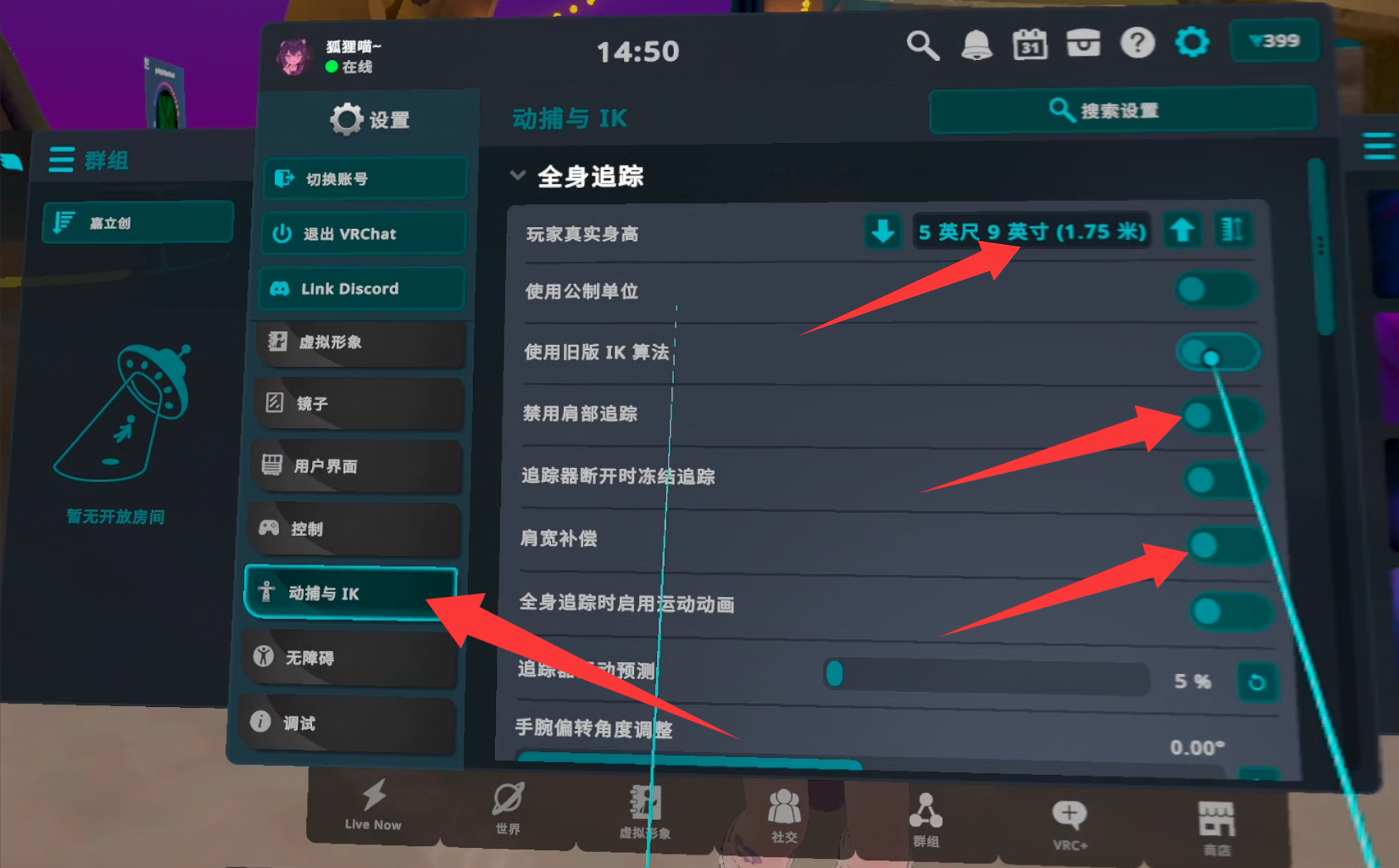
Disable shoulder tracking and shoulder width compensation. Enable full-body calibration visual feedback, set the tracker attachment range to 0.2 m, and set the tracker appearance to direction axis.
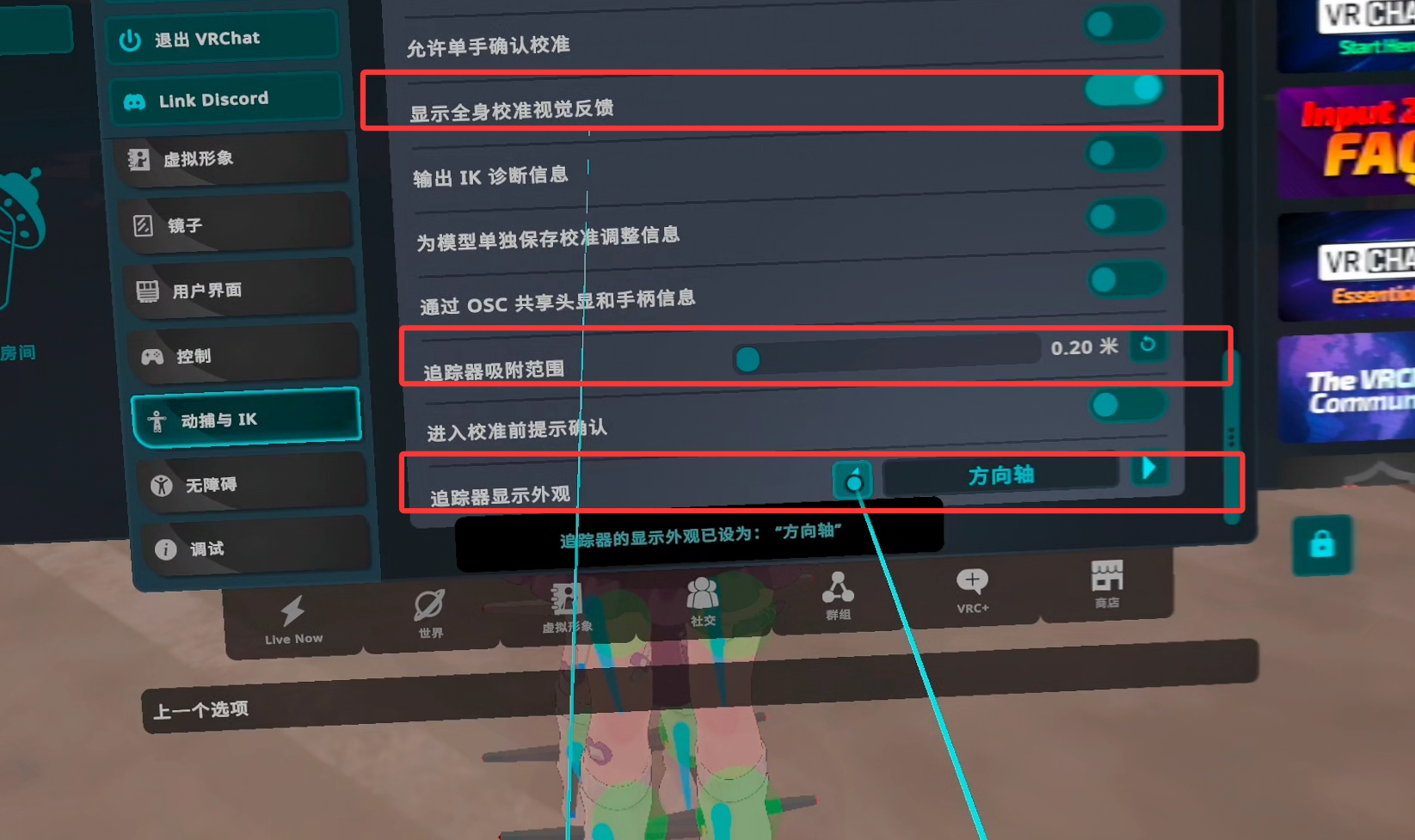
Set visual feedback, attachment range and direction axis.
First Use Preparation
Gyroscope Calibration
Calibration frequency
Calibrate once after receiving the trackers; do not calibrate before every use.
- Insert all trackers into the charging dock, then double-press the SWO button. The trackers blink green once, stay solid green for 4–6 seconds, and finally blink green three times to indicate that gyroscope calibration is complete. Do not touch or move the trackers during calibration.
Before Each Use
Before-use preparation
Complete the following preparation before each use of the trackers.
Point-count recommendation
If you purchased an 8-point or 10-point set, start with 6 points first. Eight- and ten-point setups are more difficult to wear and tune; move to 8 or 10 points after the 6-point setup works correctly.
Prepare in this order before each session:
Start SlimeVR, put on the headset and trackers, and enter VRChat.
Click "Drift reset - Full reset" and stay in the upright pose until the countdown ends; then click "Wearing - Body" and stay in the skiing pose until the countdown ends.
Not ideal after calibrating?
If the tracker position or orientation is not ideal after calibration, you can repeat this step until you are satisfied.

Run the full reset and body wearing calibration in order. With 8 or more points and foot trackers assigned, also click "Wearing - Feet" and rise onto your toes until the countdown ends.
No foot trackers?
If no trackers are assigned to the feet, you can skip this step.
After the steps above, open the VRChat menu as soon as possible, keep your legs straight and still, and click Calibrate.
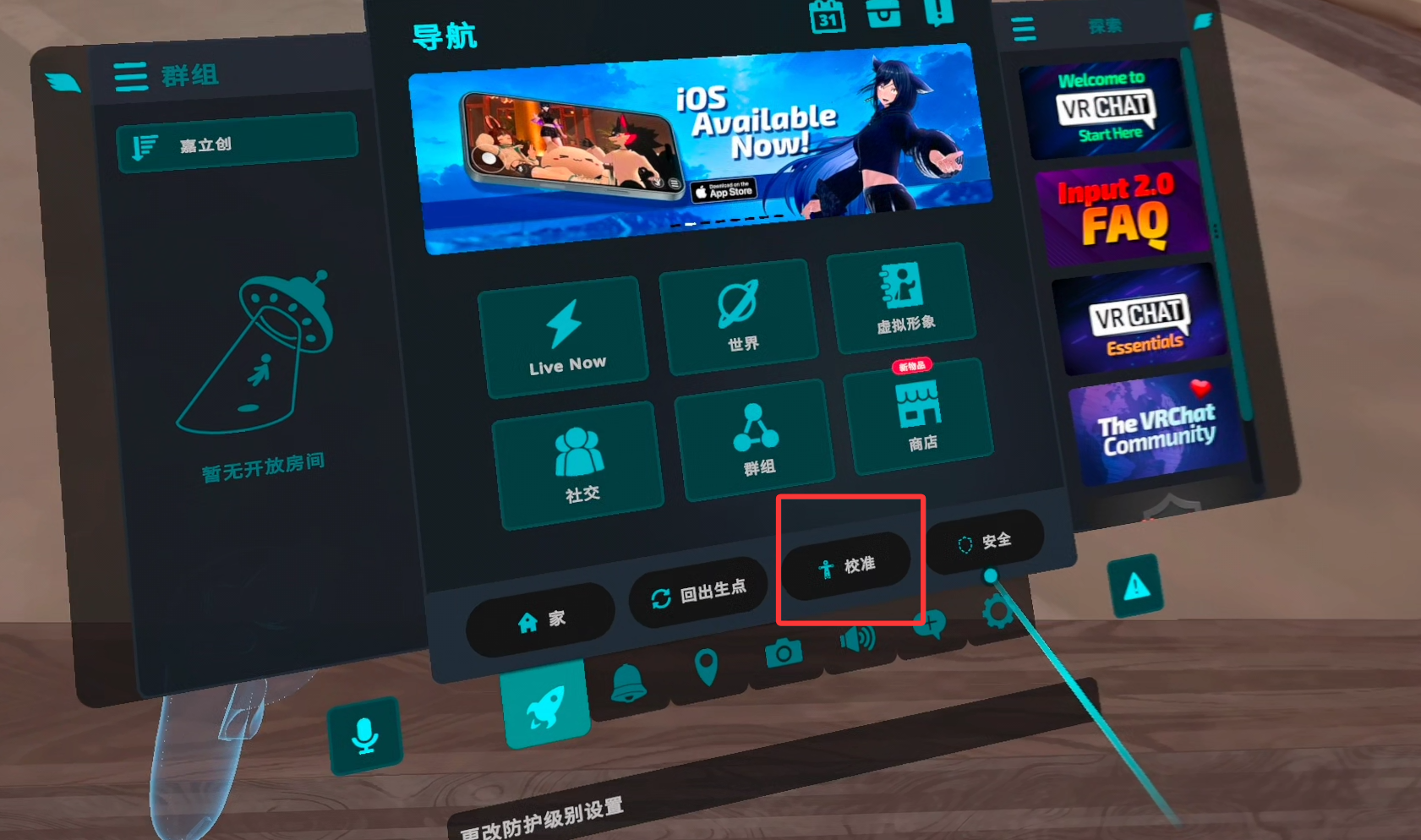
Stay upright and stable before calibrating. Keep your legs straight and extend your arms into a T-pose (only if you have arm trackers); keep the trackers (red circle positions) as close to the matching model parts as possible.
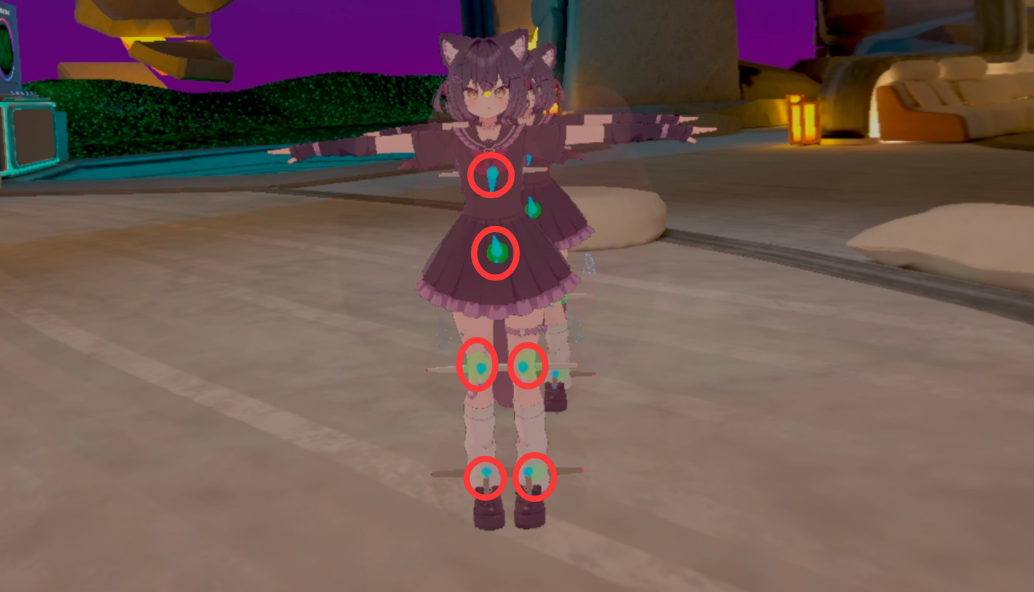
Keep the trackers as close to the model parts as possible. Mainly adjust the five positions to match the avatar skeleton (depending on your tracker count); click the drop-down arrow on the right for more detailed options.
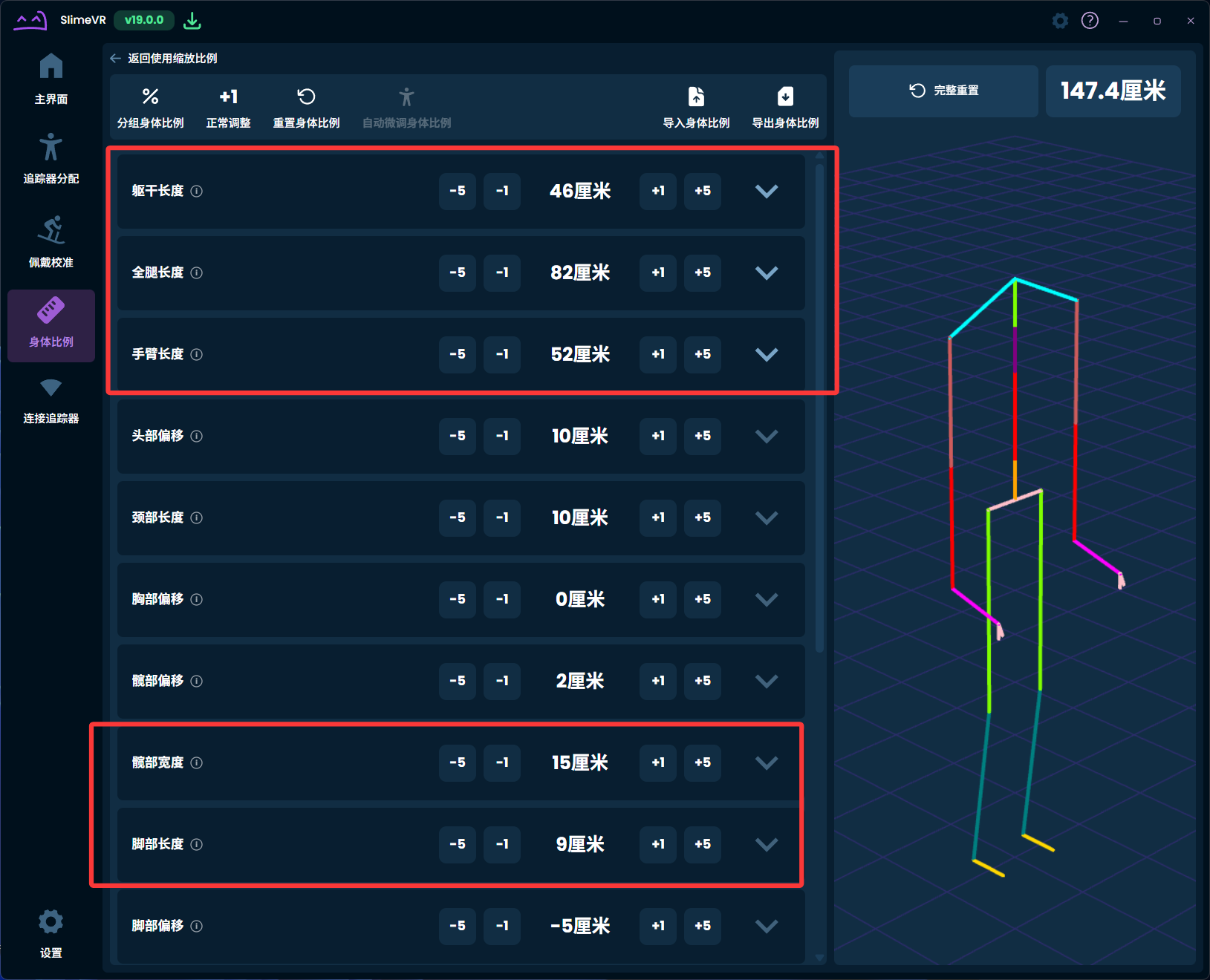
You can adjust the skeleton here for different models. After adjusting, shrink the green circle so it aligns with the model, then press the controller trigger to confirm the binding.
Different avatars
Different avatars generally need the skeleton re-adjusted before binding; re-playing with the same avatar usually does not require adjustment.
When Movement Is Abnormal
- After re-wearing or restarting the app, prioritize re-running the full reset and body wearing calibration.
- For natural drift after long sessions, you can use "Full reset" or "Reset yaw" depending on the situation.
- If orientation is still wrong after movement, re-secure the straps first, then re-run the full reset and wearing calibration.
- If problems remain, see Troubleshooting and contact support with SlimeVR and VRChat screen recordings.