
Charging, Buttons & Safety
Button Operations
| Device | Current state | Action | Result |
|---|---|---|---|
| Charging dock | Trackers placed correctly | Press the left button | Power on the trackers in batch |
| Tracker | Off | Press the side button | Power on the tracker individually |
| Receiver | Trackers on | Press the batch power-off button | Power off the trackers in batch |
In the original manual, the button on the trackers and charging dock is labeled SW0; the metal button on the left side of the receiver is labeled SWO, and the small hole on the right is RST.
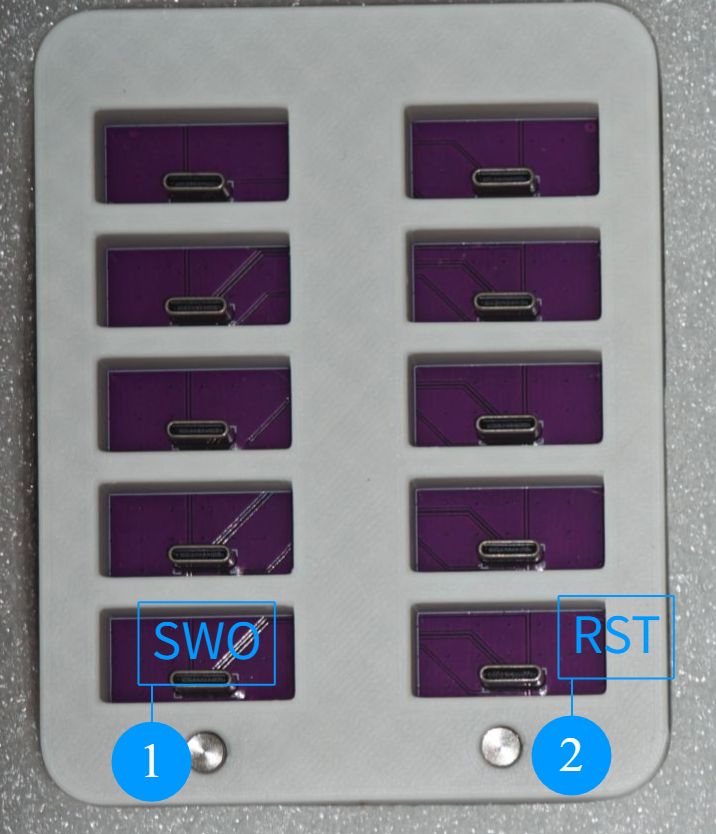
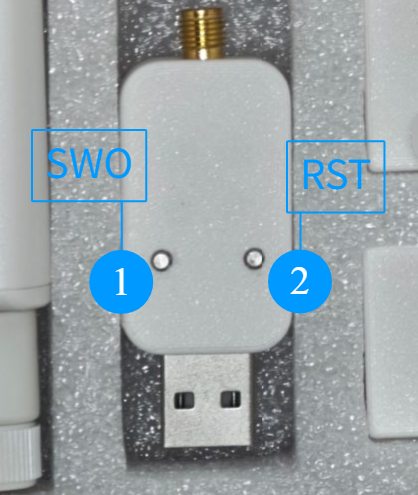
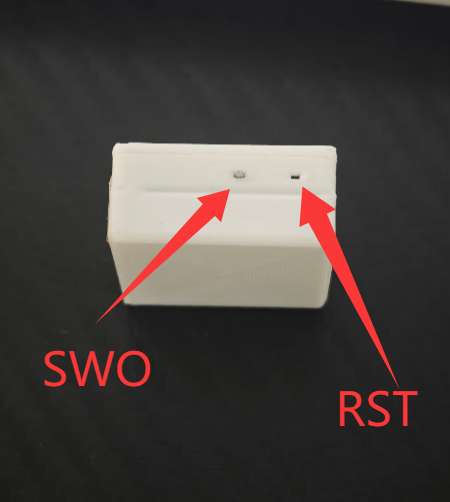
Tracker & Charging Dock SW0
| Action | Function |
|---|---|
| Short press once | Restart device or power on |
| Quick press twice | Trigger IMU calibration |
| Quick press 3 times | Reset wireless pairing |
| Quick press 4 to 6 times | Enter DFU firmware update mode |
| Press and hold 1 to 5 seconds, then release | Power off |
Receiver SWO
| Action | Function |
|---|---|
| Short press once | Power off all connected trackers |
| Quick press twice | Exit pairing mode |
| Quick press 3 times | Enter pairing mode |
| Press and hold at least 5 seconds, then release | Clear all paired device records |
Pairing records
Holding the receiver button clears all paired device records. Only do this when you need to re-pair all devices.
Indicator Lights
Indicator behavior can change with firmware versions; the table below covers common states.
| Scenario | Indicator |
|---|---|
| Waiting to pair (pairing mode) | Blue light blinks once per second |
| Pairing succeeded | Tracker switches to green light blinking quickly 4 times |
Gyroscope calibration (double-press SW0) | Green light blinks once, stays on for about 4-6 s, then blinks 3-4 times to signal completion |
DFU firmware mode (RST quick-press 3 times, or SW0 quick-press 4-6 times) | Red light blinks |
For pairing steps, see Add or Replace Trackers.
Charging Your Devices
- Check that the contacts on the dock and trackers are clean.
- Place the trackers into the dock in the correct orientation.
- Power the dock with a USB power source that meets the rating on the product label.
- Confirm the charging state with the indicator lights.
Stop using immediately on abnormality
If the battery bulges, is damaged, smells, overheats abnormally, or the housing deforms, stop charging and using the device, and contact support.
Basic Safety Requirements
- Avoid dropping, piercing, crushing or exposing the device to liquids.
- Do not charge in high temperature, direct sunlight or humid environments.
- Do not use chargers, cables or docks with unclear specifications or that are damaged.
- If the device is unused for a long time, check the device and battery condition regularly.
- Children should use the device under adult supervision.